
A / WIDTHS
Start with a preset. Adjust when you need to.
Use the current window or choose Desktop, Tablet, Mobile, and custom widths. Presets can be edited.
MADE FOR DESIGN WORK
Choose a width. Capture a full page, visible view, or element. Save a PNG or copy Figma layers when available.

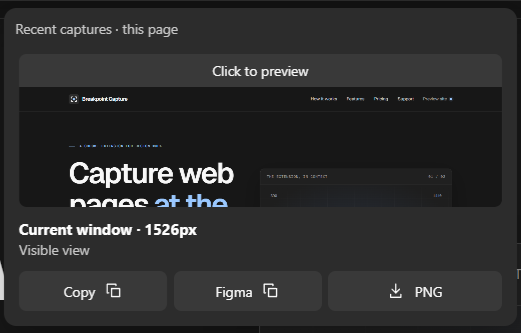
Three steps from page to usable output.
Use the current window, Desktop 1440 px, Tablet 768 px, Mobile 390 px, or a custom size.
Take a full-page screenshot, the visible view, or one selected element.
Download or copy the PNG. Copy to Figma when the result supports it.
Work with the whole page, the current view, or one element. Pick the width that matches the design you need to inspect.
Use the current window or choose Desktop, Tablet, Mobile, and custom widths. Presets can be edited.
Capture the full page, the visible viewport, or a selected element.
Every result shows the selected size and width, so handoff stays clear.
Keep the pixels as a PNG, or copy design data into Figma when editable conversion succeeds.
Use the screenshot as a visual reference, share it, or bring it into your design file. Very tall results can be downloaded as image slices.
Paste editable layers into Figma when conversion succeeds. Some fonts, images, and complex styles can differ from the PNG; visible-view captures may paste as one image.
PRIVACY & PERMISSIONS
Screenshots and page contents are processed locally. They are not sent to a Breakpoint Capture server. Account sign-in and the monthly allowance use Supabase; license checks contact the billing service.
Read the privacy policyChrome shows a debugging notice while the extension sets a capture width and takes a screenshot.
Figma may request optional access to image hosts to fetch artwork missing from editable layers.
Downloads happen only when you choose a download action.
Capture at any width with the Free plan. Pro is planned for heavier use.
20 capture starts per account, per UTC calendar month.
Unlimited capture starts for the account using an active Pro license.
One capture start uses a Free slot, including a cancelled or failed attempt. Copying, downloading, or using Figma on an existing result does not use another slot. The Free allowance resets at 00:00 UTC on the first day of each month.
Starting a new full-page, visible-view, or element capture uses one slot. Cancelled and failed starts also count. Copying, downloading, and using Figma on an existing result do not use another slot.
Conversion varies by page. Some fonts, artwork, and complex CSS may differ from the PNG. When editable layers are unavailable for a visible-view capture, Figma can copy the screenshot as one image.
The extension uses Chrome’s debugger API to set the selected width and capture the page. Chrome displays a notice during that operation; the extension detaches afterward.
Captures are processed locally in your browser. Screenshots and page contents are not sent to a Breakpoint Capture server. Email sign-in and Free usage checks contact Supabase; Pro license checks contact the billing service and Lemon Squeezy.
No. Chrome internal pages and the Chrome Web Store do not support extension capture. Use it on a regular web page in Chrome 124 or later.
Choose the page, choose the frame, and keep the result.